
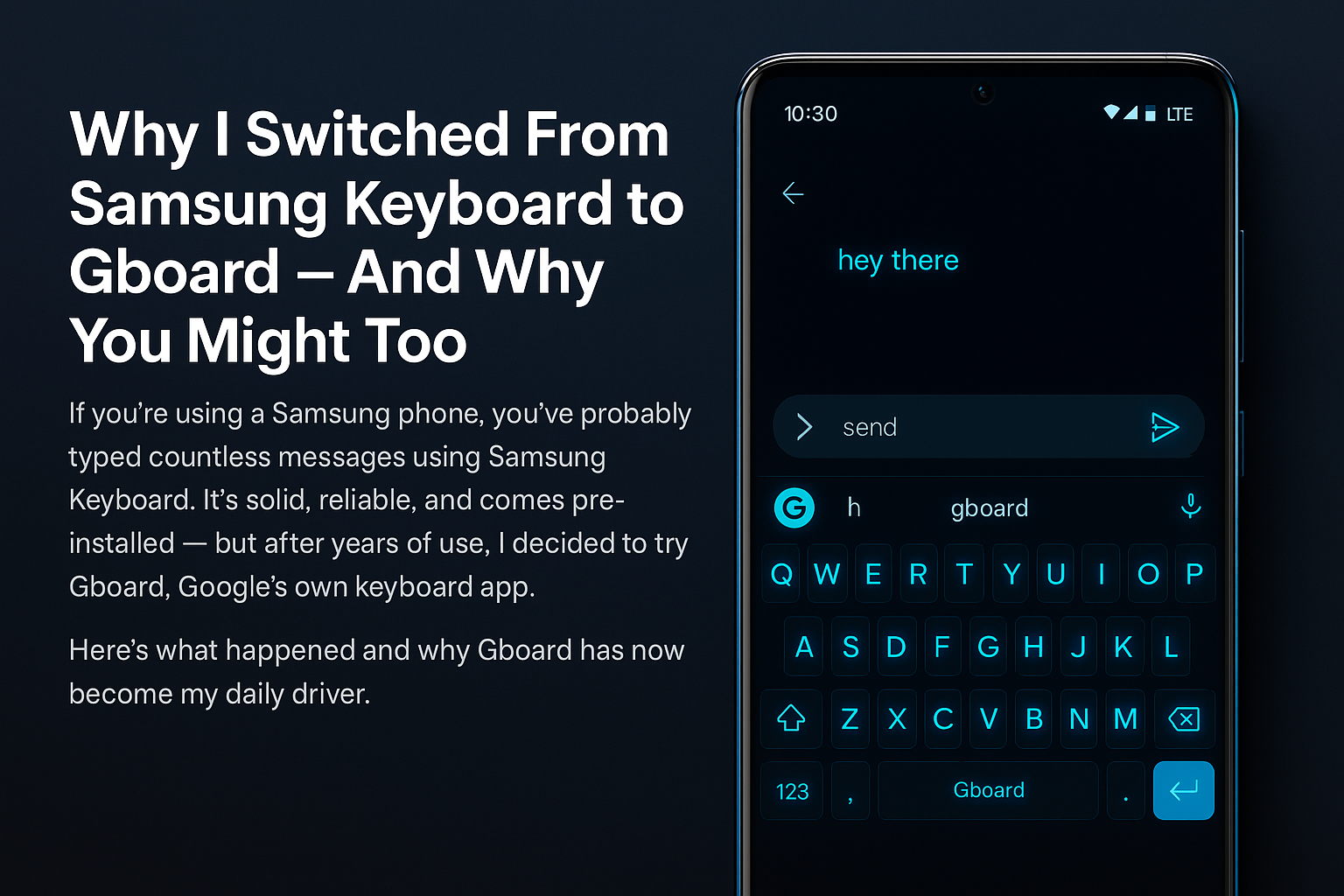

Why I Switched From Samsung Keyboard to Gboard – And Why You Might Too
If you’re using a Samsung phone, you’ve probably typed countless messages using Samsung Keyboard.
It’s solid, reliable, and comes pre‑installed — but after years of use, I decided to try Gboard, Google’s own keyboard app.
Here’s what happened and why Gboard has now become my daily driver.
First Impressions
Samsung Keyboard isn’t bad at all.
It has:
A familiar layout,
Decent predictive text,
And features like built‑in emojis and stickers.
But over time, I noticed it felt a little… stale.
Predictions weren’t improving much, and customization options were limited.
So I installed Gboard to see what all the hype was about.
What Gboard Does Better
🔎 Smarter Predictions & AI Suggestions
Within a few days, Gboard felt like it knew me.
Its predictive text and autocorrect are powered by Google’s machine learning — meaning it adapts quickly to your style, slang, and frequently used phrases.
🌍 Built‑In Google Search
Need to look something up while typing?
Gboard has Google Search right inside the keyboard.
You can search for addresses, GIFs, emojis, and even translations without leaving your app.
🎨 Endless Customization
Samsung Keyboard offers some themes, but Gboard takes it further:
Change keyboard height,
Pick from a variety of color themes,
Add custom backgrounds,
And even enable floating mode for easier one‑hand use.
🌐 Multilingual Typing
If you switch between languages, Gboard is a game‑changer.
It detects languages automatically and lets you type seamlessly without manually changing the keyboard.
Why I’m Sticking With Gboard
After a month of daily use, I haven’t looked back.
Typing feels faster, more accurate, and more fun.
The extra features (like integrated search and smarter autocorrect) make Gboard feel like more than just a keyboard — it’s an assistant right at your fingertips.
Should You Switch?
If you’re perfectly happy with Samsung Keyboard, there’s no harm in staying put.
But if you:
✅ Want better predictions,
✅ Love customization,
✅ Or switch between languages often,
Gboard is absolutely worth trying.
💡 How to Try It
You can download Gboard free from the Google Play Store and switch in your phone settings under General Management → Keyboard list and default.
Final Thoughts
Sometimes the apps that come pre‑installed aren’t the best option for everyone.
For me, Gboard offers a smoother, smarter, and more customizable typing experience.
If you’re curious, give it a shot — you might never go back.